 TulipSoft
 About computer names
About computer names
Once IP is configured within a LAN, computers can be identified by their IP address. However, it is difficult to immediately determine which terminal is used for what purpose. When you purchase a PC, it has a name given by the manufacturer, but this name can be changed. Giving a computer name makes it easier for humans to identify devices within the network.
Example:
- DEL-20412AE → Tulip DB Server
- HP-EEJFAEBOOKA → Tulip Client 1
- HP-EEJFAEBOOKE → Tulip Client 2
How to change the computer name
This section explains how to change it on Windows OS.
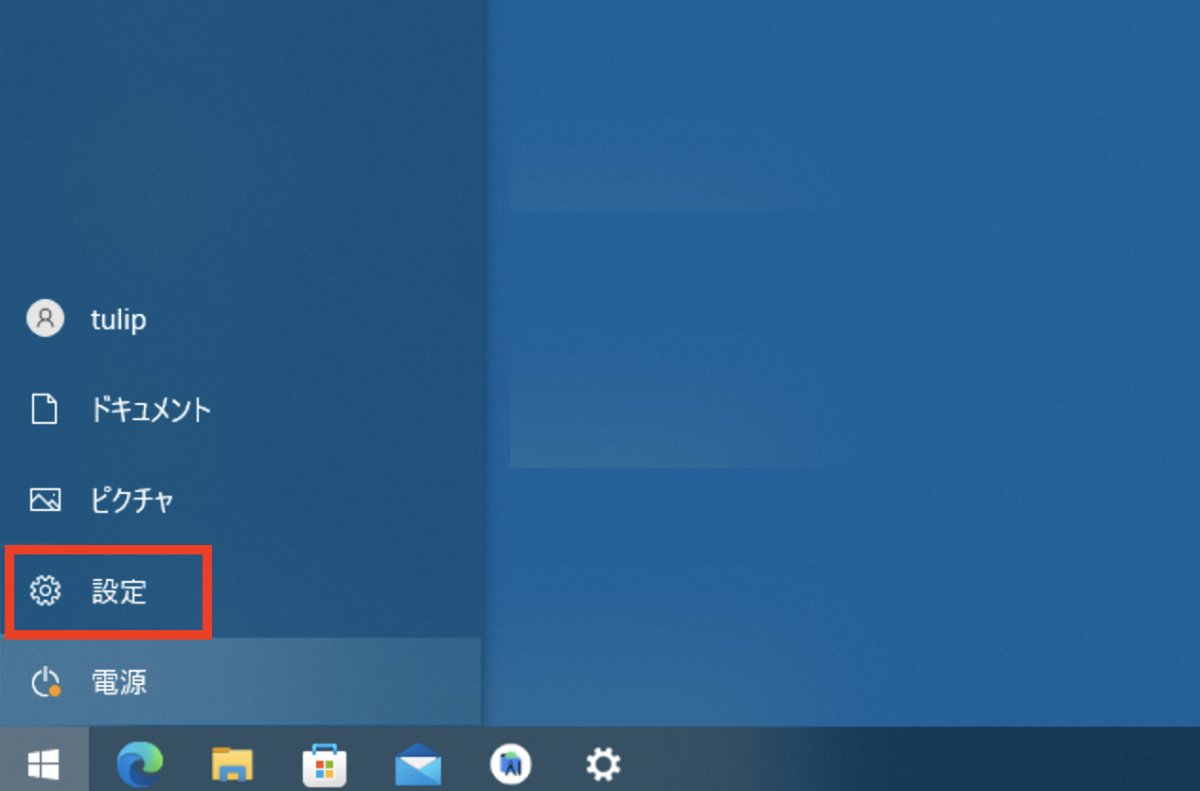
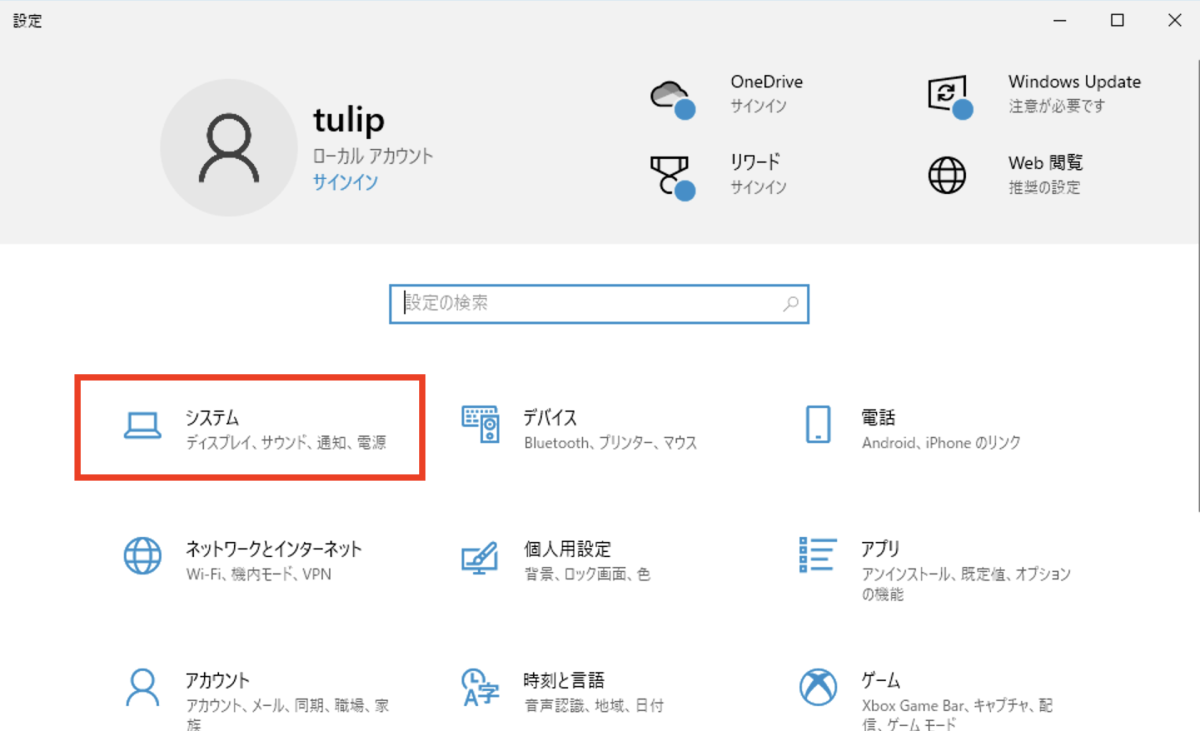
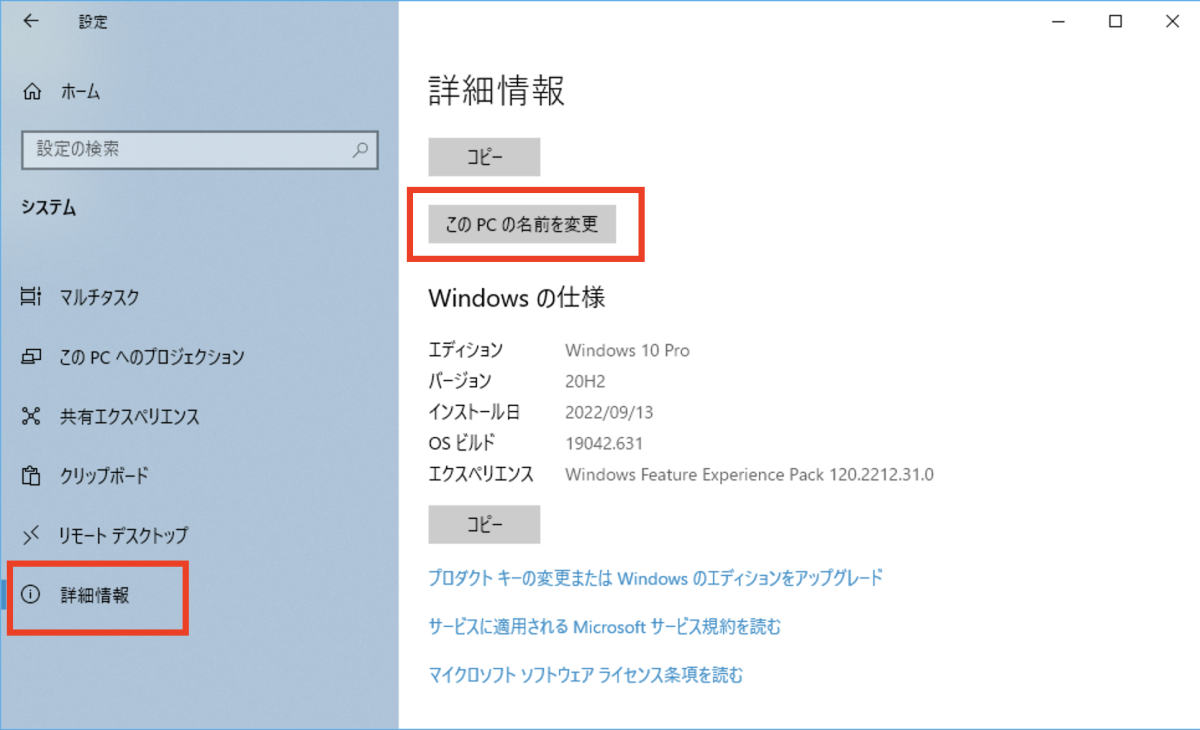
You can change the name by pressing the Windows button, going to Control Panel, selecting System, then Detailed Information, and clicking the “Rename this PC” button.
Open the control panel.
Select “System”.
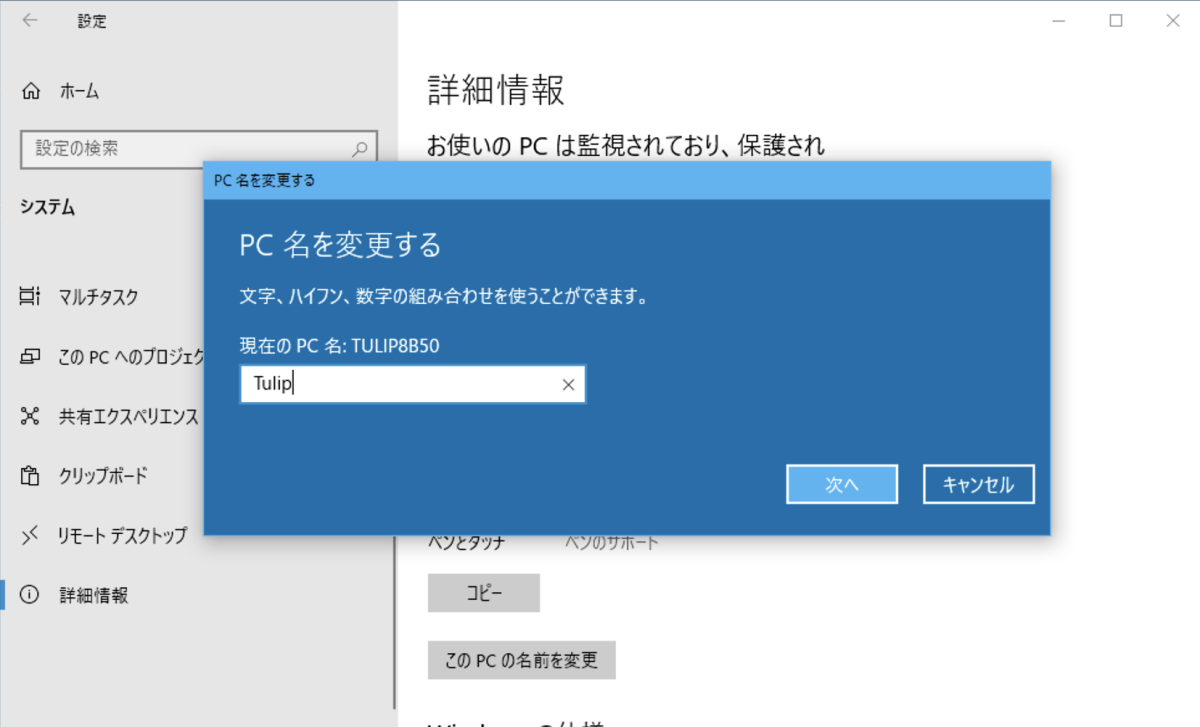
Select “More information” and press the “Rename this PC” button.
Enter the computer name you want to change.
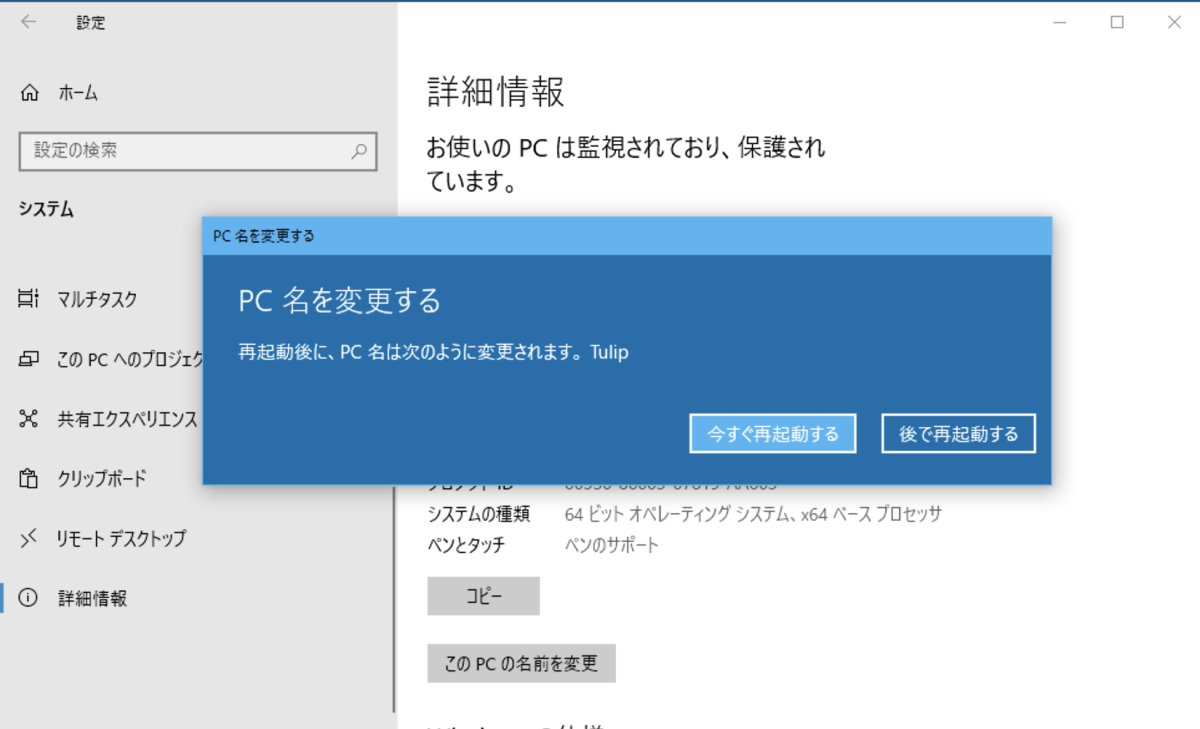
Restart your PC to make the changes. It will be reflected after rebooting.
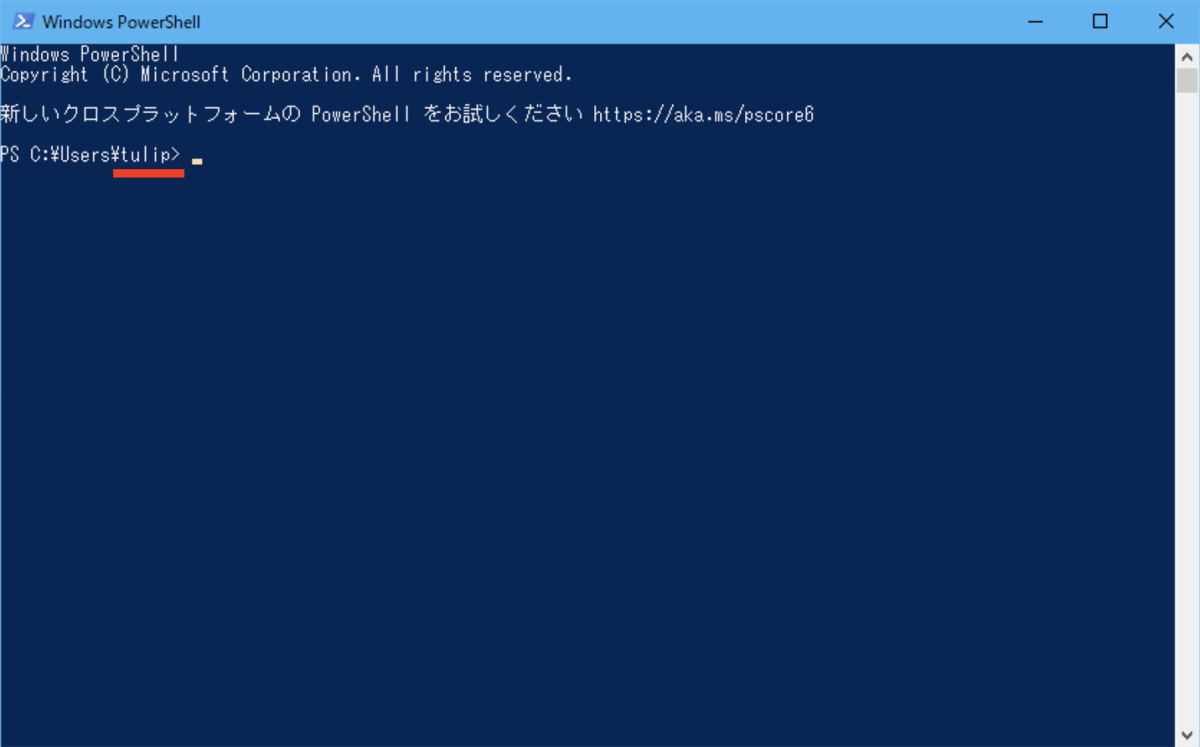
After restarting the PC, start Windows Powershell and you can confirm that the computer name has changed.